Appearance
Sequences
A sequence is a list of scenes that play one after another. Open one from the Sequences tab on the home page. The page has the scene list on the left (Alt+0 hides it), the preview in the middle and a panel on the right with two tabs, Entry and BCR2000. The toolbar has the File menu, a cycle button, the preview buttons, a Build | Show switch, Previous and Next with the position (1 / 2), the status, the sequence's name and the save state. Save and Publish work like they do for a scene.
Building a sequence
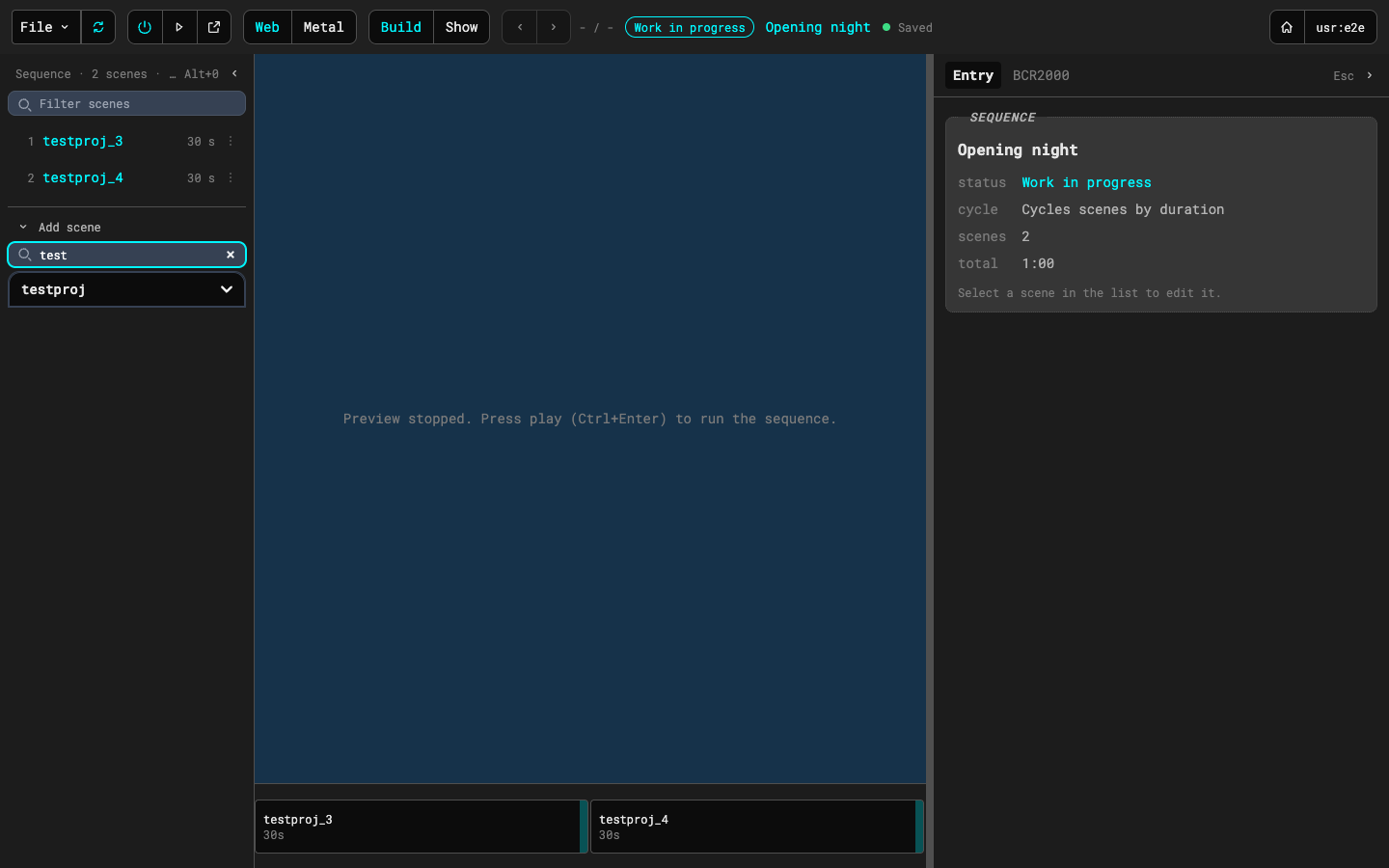
Build is for putting the sequence together. Pick Add scene under the list, type part of a project's name, and choose a version to add it at the end. Each row shows the scene, its duration in seconds and a menu. Select a row to edit it in the Entry tab: choose another version of the scene, set its duration, move it up or down, or remove it. With nothing selected the Entry tab shows the sequence's status, whether it cycles, the number of scenes and the total time.
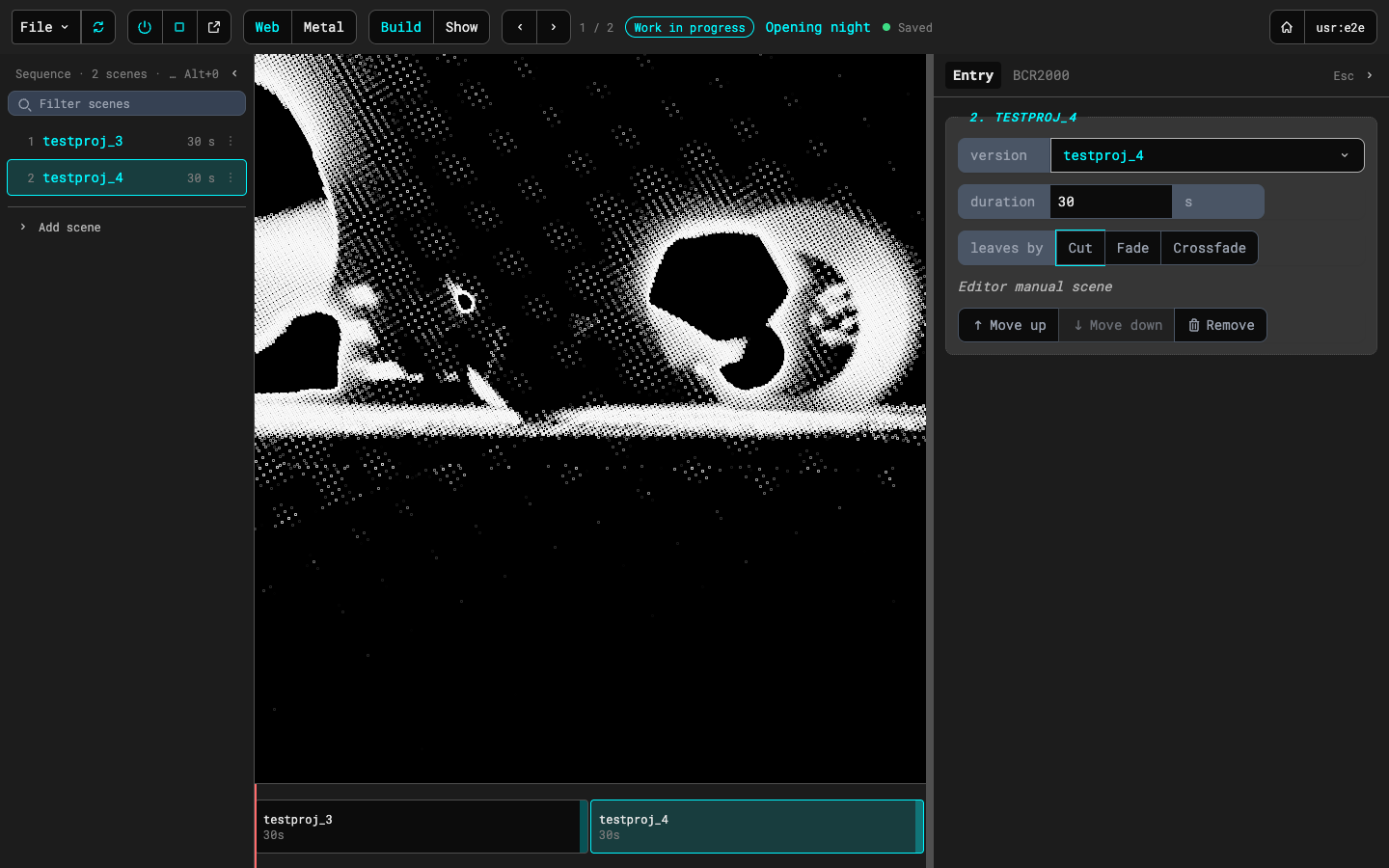
The cycle button (the two arrows) makes the sequence move on by itself when each scene's duration runs out, and start over at the end. Without it the sequence stays on a scene until you step. Play runs the sequence in the middle of the editor, and New tab runs it in its own browser tab. Both follow your edits.
Showing a sequence
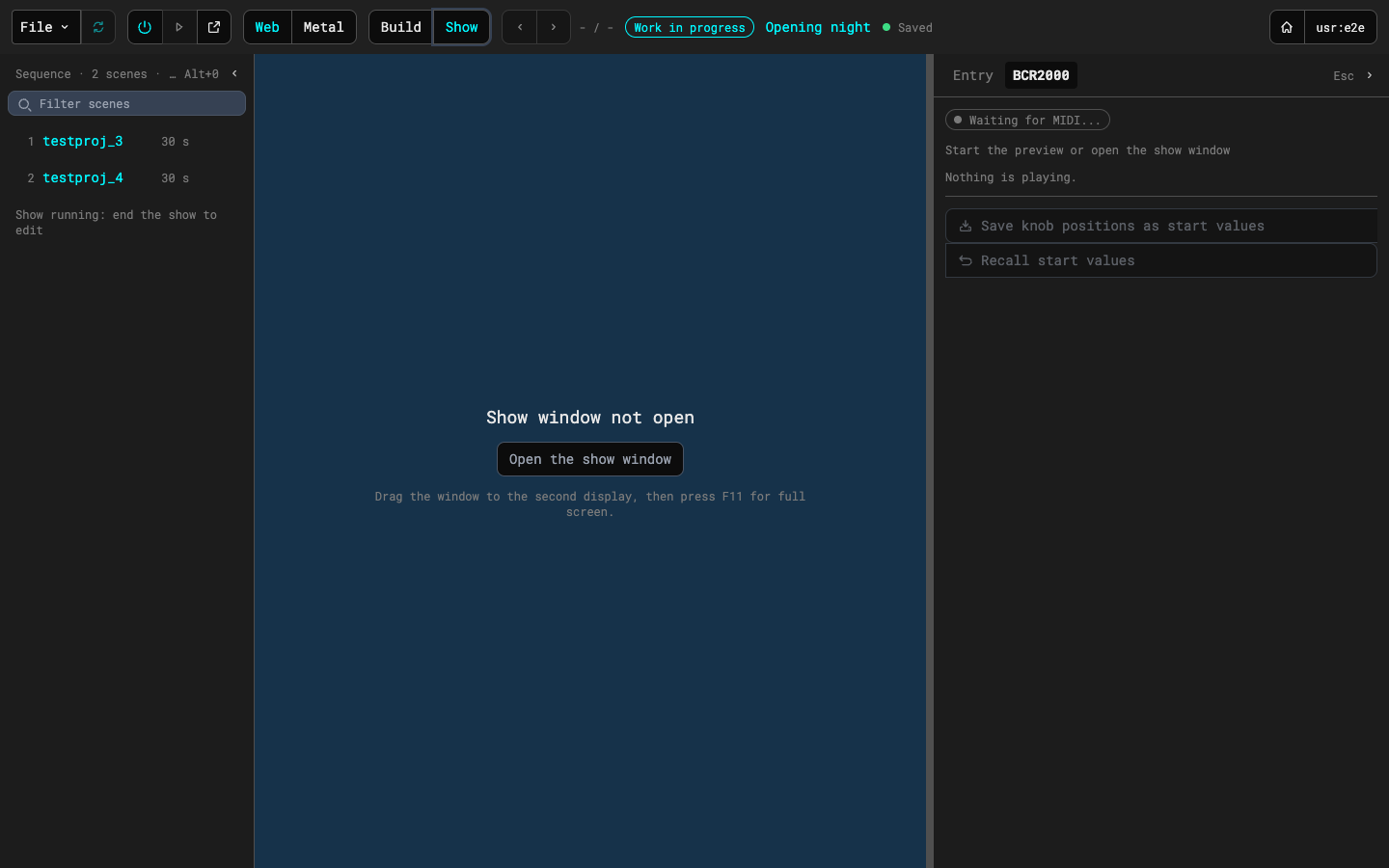
Show is for performing it. Switch to Show and the editor stops playing the preview itself: the show plays in its own window, so you can drag that window to the second display and press ⌃⌘F on a Mac (F11 on Windows) for full screen. If the window isn't open yet, the middle of the page says so, with a button that opens it. The show plays your unsaved copy of the sequence (the File menu says so), and the list can't be edited until you switch back to Build. You can still jump: hover over a row (or select it and press Enter) and press Jump to play that scene.
If you reload the editor while the show window is open, the page says Reconnecting... until it finds the window again. If you close the show window, the page says Show window closed, with the button to open it again.
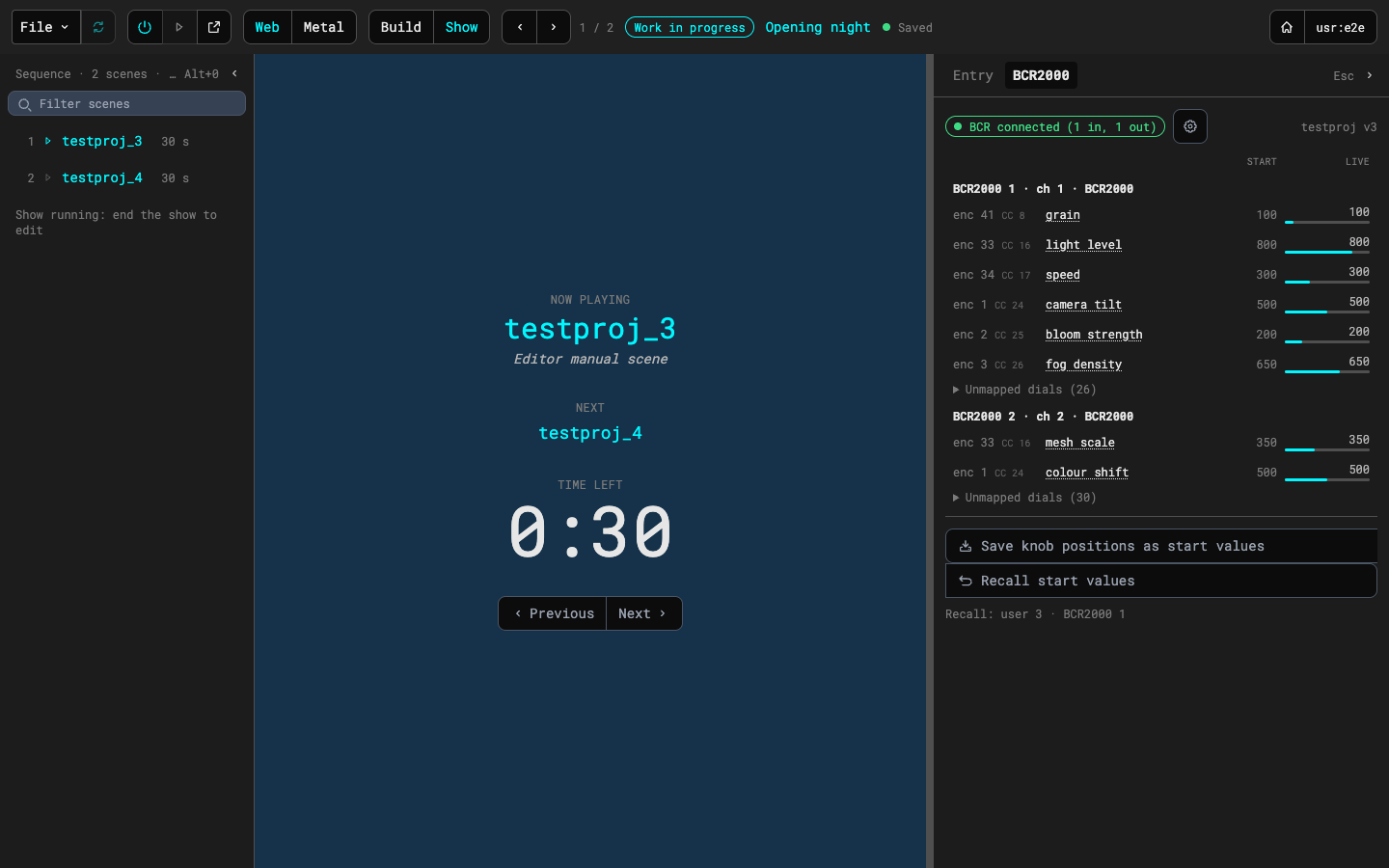
When the window is open, the middle of the page shows what is playing now, what is next and the time left, with Previous and Next buttons. The toolbar's arrows, the ← and → keys, a BCR2000 button mapped to Previous or Next and the show window's own N and P keys do the same. If the sequence cycles, it moves on when the time runs out.
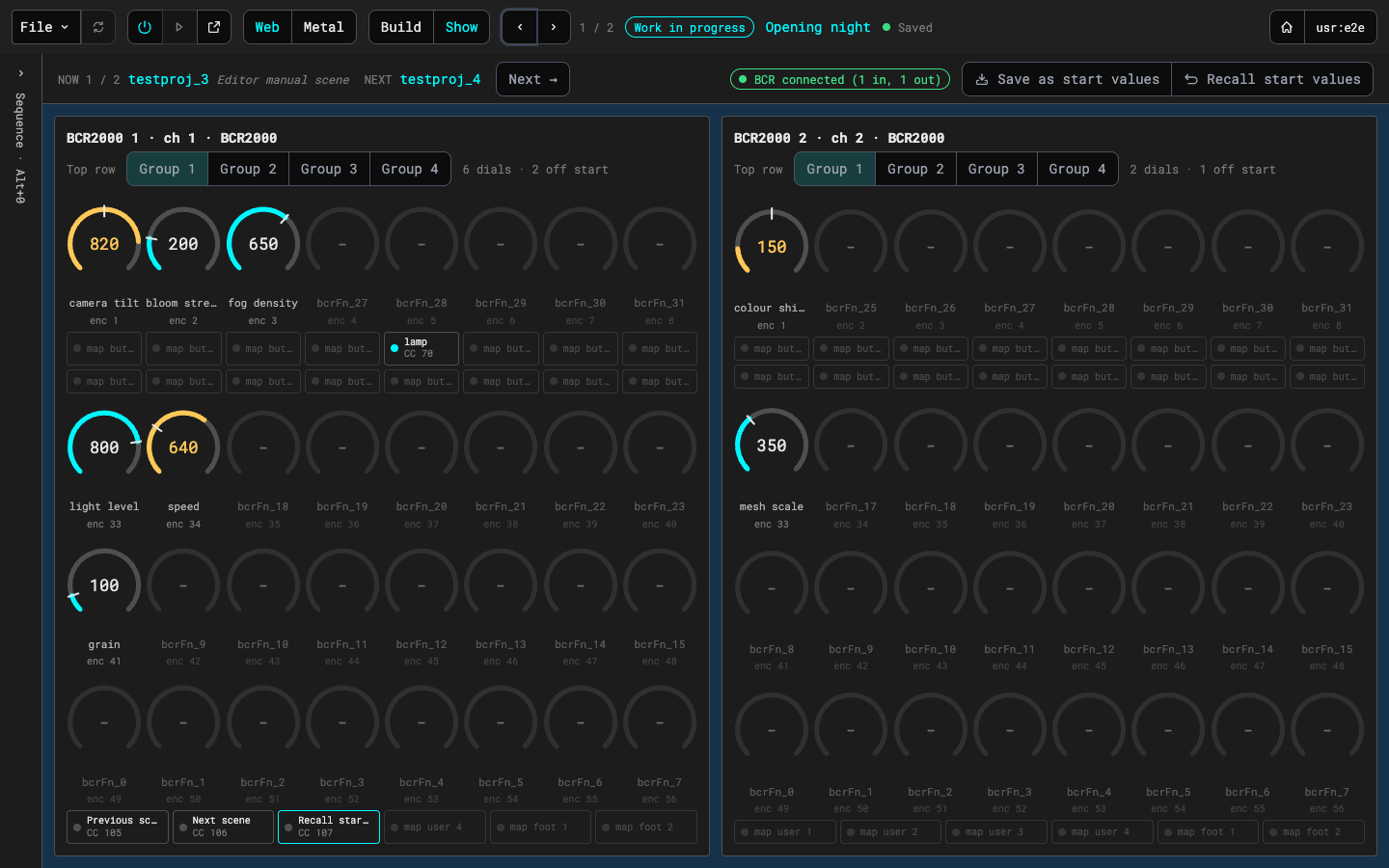
Without cycle the show is manual, and the layout changes. A strip under the toolbar shows NOW (the position, the scene and its description), NEXT with a Next → button, the Save and Recall messages, the BCR status chip, and the Save as start values and Recall start values buttons. The middle of the page is a grid for each controller of the playing scene: its knobs laid out like the hardware, with the push-encoder row on top, then the buttons, the three encoder rows, and the user and foot keys along the bottom. A knob shows its live value large in a ring (with a tick at the saved start value), its label and a small encoder number, and the Group 1 to 4 tabs in the grid's header follow the knobs as on the BCR2000 page. When a scene loads the dials already show the saved start values, as the unit's rings do, and a knob that's off its start value is highlighted. A lit dot on a button means it is held, or latched on for a toggle. Turn a knob or press a button on the hardware and its picture follows. Above the grids, Save as start values stores the knobs' positions as the scene's start values, and Recall start values sends them back to the knobs.
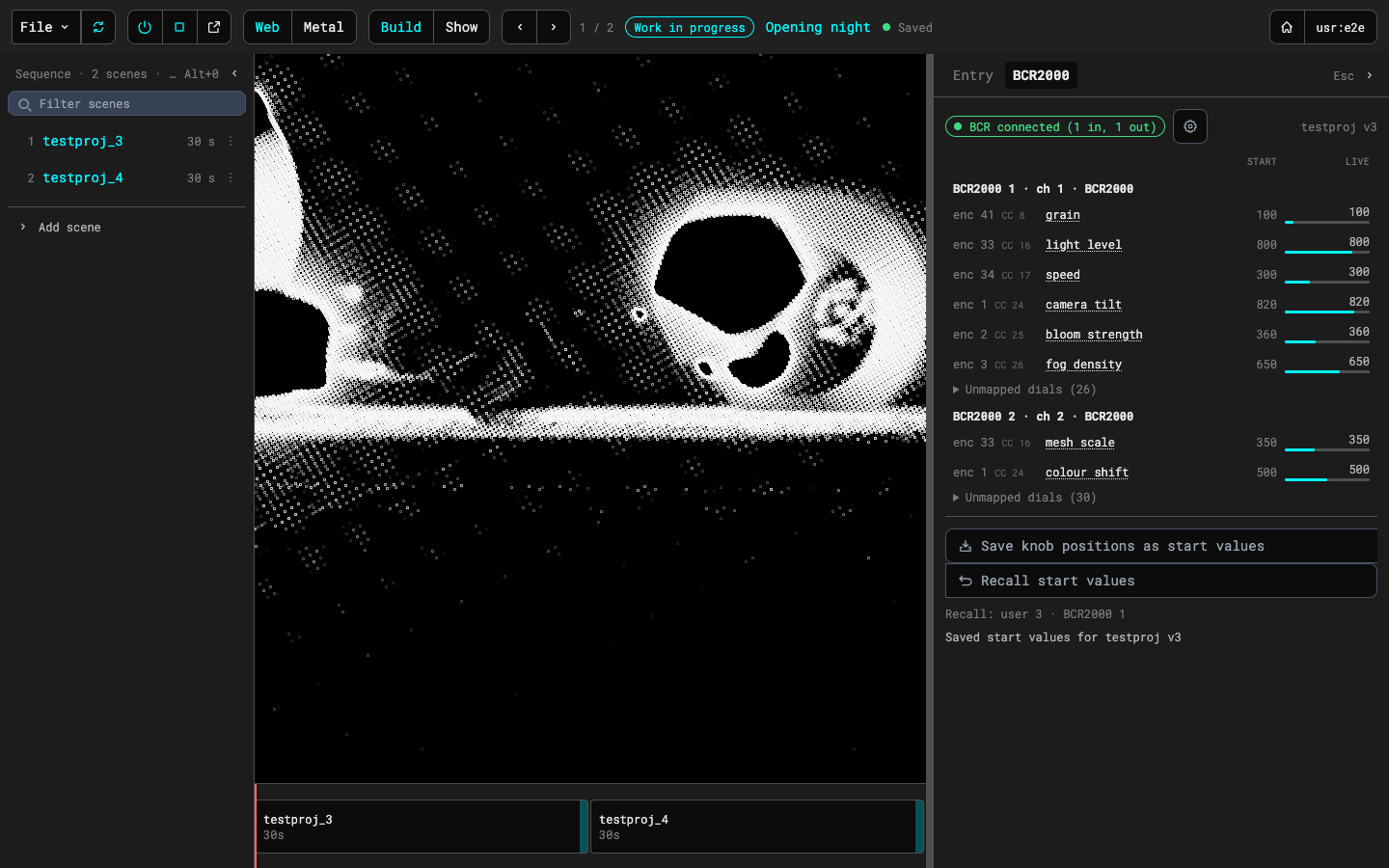
Build brings the preview back. The show window stays open until you close it.
The BCR2000 tab
The BCR2000 tab lists the dials of whichever scene is playing, with their start values and the live values from the controller. A row whose knob is off its start value is highlighted, and its live value is coloured. The chip at the top says whether a BCR2000 is connected and how many MIDI inputs and outputs the browser sees. Each controller has its own heading, and dials that aren't mapped fold into an Unmapped dials list. The gear button beside the status chip opens the same menu as on the BCR2000 page, with MIDI ports, Controllers and Sync from BCR (no Remove BCR2000 mapping here); in Show the Controllers row is off, since a show can't change its controllers, and Sync from BCR still works. The tab follows the scene that is playing, not the row you selected; with nothing playing it has nothing to show. Clicking a dial opens the same dialog as on the BCR2000 page, including the Settings select of a target dial (see Target dials above). Save knob positions as start values (⌥⇧S on a Mac, Alt+Shift+S on Windows) saves the knobs' positions into the playing scene straight away, and Recall start values (⌥R, Alt+R) sends them back to the knobs.
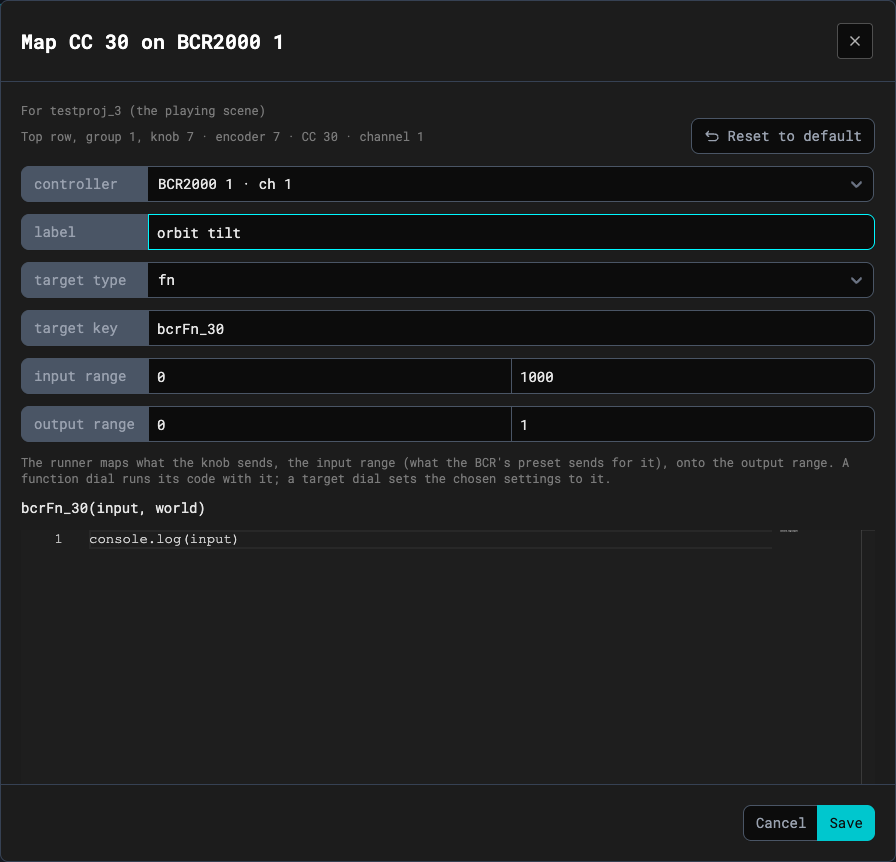
Click a mapped dial's name, or Map... on an unmapped one, to map it right here without leaving the sequence; in the manual show, click any knob or button in the grid. The dialog is the one on the BCR2000 page, with the same fields: the controller, the label, what it controls, the input and output ranges, the NRPN number for groups 2 to 4 and a function, with Reset to default, Save and Cancel. Remove mapping drops a dial's mapping, with its function and start value. Every change is saved to the playing scene straight away, and the runner picks it up without restarting.
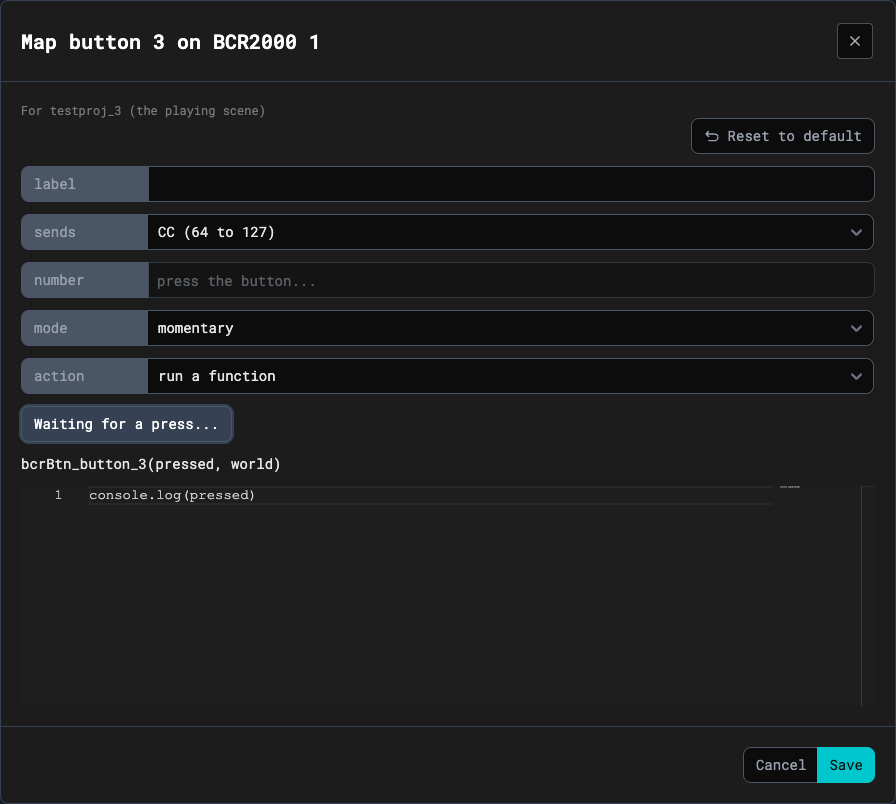
Buttons are mapped the same way. A button sends a CC (64 to 127) or a note. Press Learn and then the button on the controller to fill in its number. The mode is momentary or toggle, and its action runs a function, goes to the previous or next scene, or recalls the start values. Every scene starts with three buttons on the first controller: user 1 is Previous scene, user 2 is Next scene and user 3 is Recall start values (T1 to T3 on a BCR32). No button saves start values, so a show can't overwrite them by a stray press; use the button or the keys.
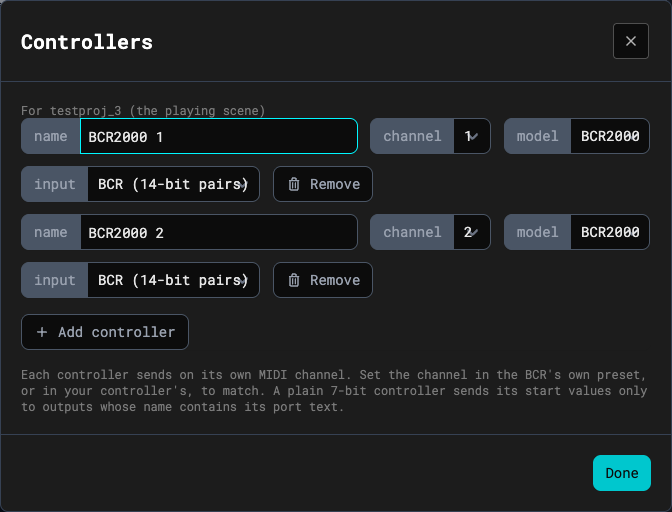
The gear menu's Controllers row changes a controller's name, its MIDI channel and its model (BCR2000 or BCR32), adds another controller on its own channel, and can remove one; these changes are saved to the playing scene straight away.